Run your Discord community by asking your AI assistant
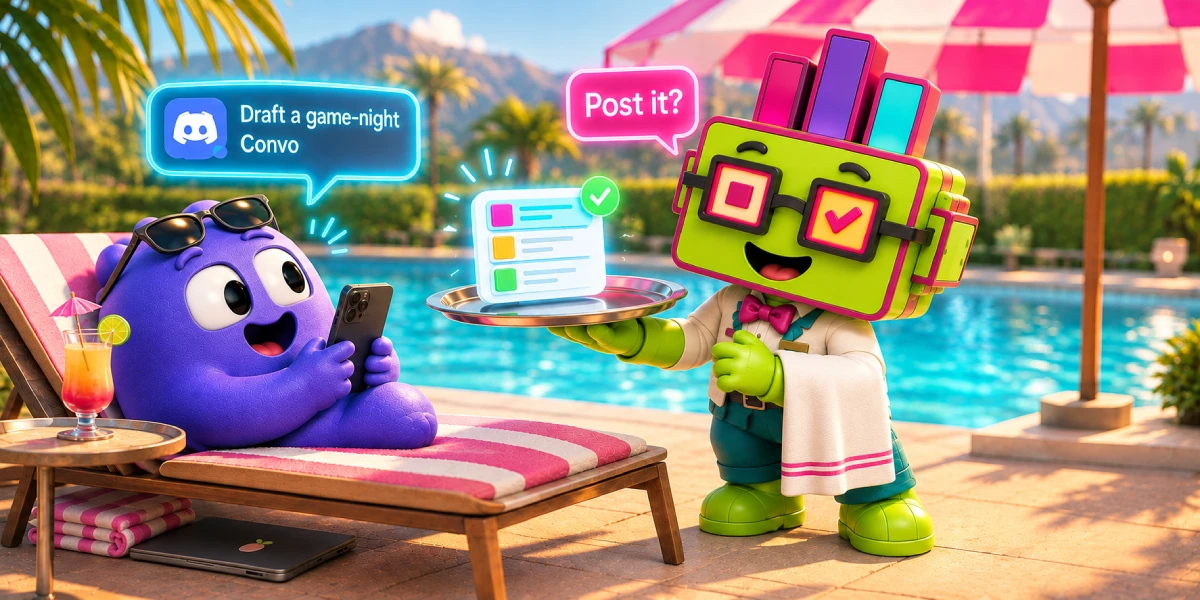
Tell your AI assistant what you want to ask your community, and it builds the project in Subo, checks the script, and launches it for you. You never open the dashboard.
That is what the Subo MCP server does, live from today. MCP stands for Model Context Protocol, the open standard AI apps use to connect to outside tools. If your AI app supports it (Claude Code does, and so do a growing number of others), it can now run your Subo community with you.
What it looks like
You type something like this:
We just wrapped the season 3 tournament. Put together a short Convo asking the players what worked and what didn’t, with one open question at the end. Don’t post it yet.
Your assistant creates the project, writes the script block by block, runs Subo’s validation on it, and shows you what it built. When you are happy with it, tell it which channel to post in and when to close it.
A week later:
Summarize what the players said in the open question. Give everyone who answered 50 XP.
It triggers the analysis, reads the summary back to you, and grants the XP. Granting XP is something members will see, so unless you have set your AI app to act on its own, it asks you first.
None of this needs new skills from you. If you know what you want to ask your community, you can describe it.
The connection also comes with a ready-made command for the second half of that loop. In Claude Code, /subo:weekly_review reads what your recent projects collected and recommends what to ask next, with the questions it would use. It changes nothing until you say yes.
What an agent can do
The connection offers 43 operations, which covers essentially everything the Subo API can do:
- Projects: create, edit, clone, validate, open, close and delete them, as Convos or polls.
- Scripts: write and edit a project’s script one block at a time, or generate one from a plain-English goal.
- Responses and analysis: read what members answered and run the AI summary of open-text answers.
- Members: look up a member, adjust their XP, grant or remove accomplishments, read their XP history.
- Templates: browse the template library and clone one into your community.
- Webhooks and settings: manage webhooks and read or change your community’s settings.
Projects an agent creates are ordinary Subo projects. Your members answer them exactly as they answer any other project, and nothing on their side changed.
It asks before anything that matters
Every one of the 43 operations carries a label your AI app can read:
| Label | Means |
|---|---|
| Read-only | Looks at your data, changes nothing |
| Normal change | Edits your setup; nobody sees it yet |
| Outward | Reaches real people: opening a project, granting XP a member will see |
| Destructive | Deletes something |
A good AI app treats the last two differently. We saw this in our own production test. We asked the agent to clean up old projects. One of them was still open, and before deleting it the agent stopped and asked us, without being told to. Subo backs that up on its side: it refuses to delete a project that is still open.
In Claude Code’s default mode, every delete comes up as a prompt with the label written into it:
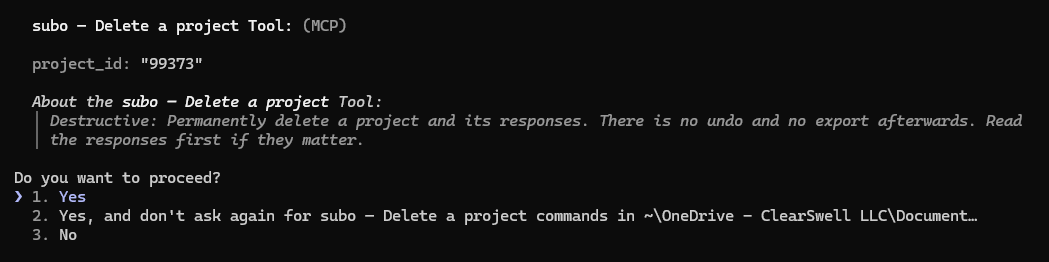 Destructive actions stop and ask. The agent has your access, not more.
How often your app asks is your choice. Claude Code’s auto mode, for example, goes ahead with what you ask for by name and stops what you didn’t ask for. The setup guide covers the modes.
Setting it up
There is no new plan and nothing to enable. If your plan includes API keys and you are an Admin of the community, you can connect an agent.
On the Account page of the web app, under API Access, create a key and choose Bot or agent. The confirmation panel now includes a Connect an AI agent section with the connection config already filled in: a one-line command for Claude Code and a JSON block for other AI apps.
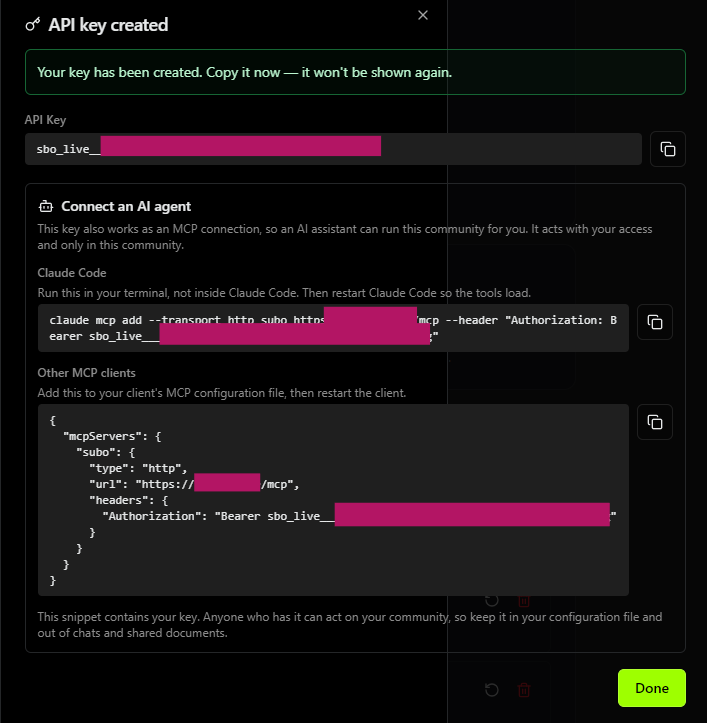 Create an agent key and the connection config comes with it.
The endpoint, if your app asks for it, is:
https://api.subo.ai/mcpSetup takes a few minutes, and the details matter: the command runs in a terminal, not inside an AI chat, and your AI app has to be restarted before the connection shows up. We wrote them all down in How to connect your Discord community to an AI agent, including how to check it worked.
The connection panel is in English only for now. The rest of the Account page is already translated.
What an agent cannot do
Three things stay with a person, whatever the agent is asked:
- It cannot create, rotate or delete API keys. An agent cannot mint itself credentials. That stays a human action on the Account page.
- It cannot change who has access to your community.
- It cannot connect a new verified-audience source, because that requires signing in to a third-party account, and only a person can do that.
And for everything it can do, the key’s access is your access. It acts with exactly the permissions you have right now, in one community only. If your access changes, the key follows within about ten minutes. If you manage several communities, you connect each one separately, and none of them can reach the others. You can revoke the key from the Account page whenever you like.
To be clear about one thing: this does not make Subo “run on AI”. The assistant is yours. You pick it, and it talks to Subo with your key. What we built is the door, and the rules about who gets through it.
For API users: a fix to /open
One change to the existing API came out of this work. Sending a delivery object to POST /v1/communities/{id}/projects/{projectId}/open used to return a 500 error, and the documented delivery.answer_surfaces field was silently ignored. Both are fixed: delivery.clear_conversation and delivery.answer_surfaces are now accepted and applied. If you tried the documented body and gave up, it works now. The open recipe has a working sample.
We’d like to hear what you ask your assistant to do first, and anything it did that surprised you. Come tell us in the Support Server →
Frequently asked questions
What is the Subo MCP server?
A way to connect Subo to an AI assistant. MCP (Model Context Protocol) is the open standard AI apps use to connect to outside tools. Once connected, your assistant can create, edit, launch and close projects, read responses and analysis, manage members' XP, and more, in one Subo community.
How do I connect it?
Create an API key of type Bot or agent on the Account page of the Subo web app. The connection config appears with the key already in it. Run the Claude Code command in a terminal, or paste the JSON block into another AI app's configuration, then restart the app. The full walkthrough is in our setup guide.
Which plans include it?
Every plan that can create an API key. There is nothing extra to buy or enable. Creating the key takes Admin access to the community.
Is Subo AI-powered now?
No more than it was yesterday. The AI assistant is yours: you choose it, you pay for it, and it talks to Subo through your API key. Subo does not run your assistant.
What can't the agent do?
It cannot create, rotate or delete API keys, change who has access to your community, or connect a new verified-audience source. Those stay with a person, on purpose.